
Set up your screens
Tell StageFlo which screen is the projector and which is the stage monitor. You do this once; StageFlo remembers it, and finds the screens again when they're plugged back in.
Before you start
- Connect the projector and monitors, and set them up in your computer's display settings as separate displays, not mirrored.
- Open Settings → Outputs.
Find out which screen is which
Click Identify screens, beside Your setup. Every screen shows its number in large type. Click it again to hide the numbers.

Open the output and click Add Screen…
Click the Stage card (or Audience, Lower Third, Center Stage), then Add Screen… in its Screens list.

Choose what it shows and which screen
Under Shows, pick the output; under Screen, pick the screen by the number you saw. Then click Add Screen.
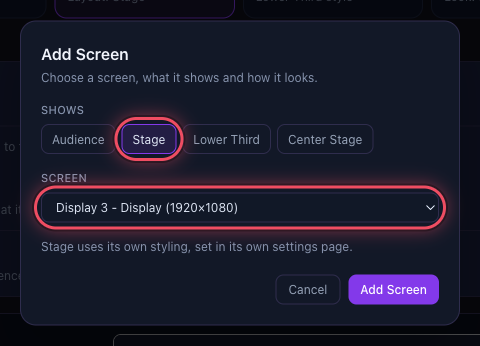 Adding a second Audience screen also asks whether both show the Same picture or One wide picture across them.
Press Apply
Changes on the Outputs page wait until you press Apply: the top of the page says Changes not applied until then, so nothing jumps between screens while you set up.

Check Your setup
Each card now shows its screen and its look. A yellow note appears if two outputs share a screen, as one would cover the other.
