
Give the livestream its own look
The hall can keep both languages in the middle of the screen while the livestream shows one line low down, over the camera. A look changes how one output shows the slides; the slides themselves stay the same everywhere.
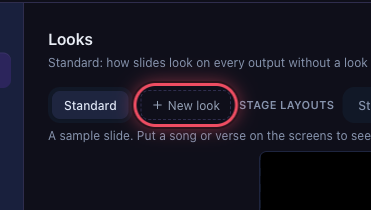
Click + New look
In Settings → Looks, click + New look, next to Standard.
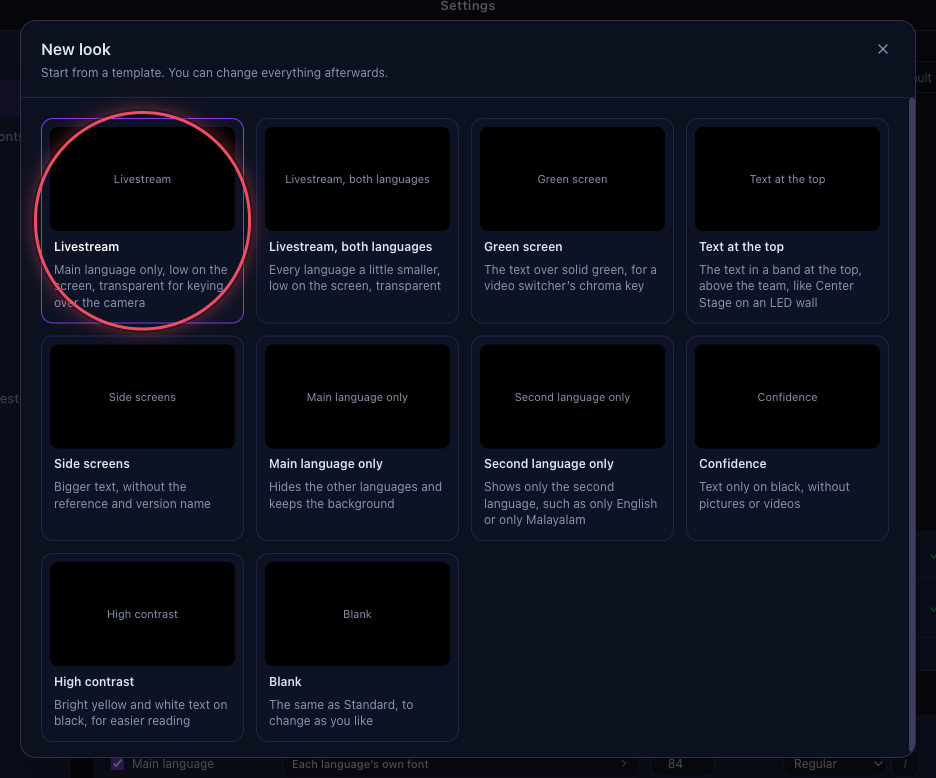
Pick the Livestream template
Each template shows the slide on the screens in that look. Livestream puts the main language low on the screen over a transparent background, for keying over a camera.
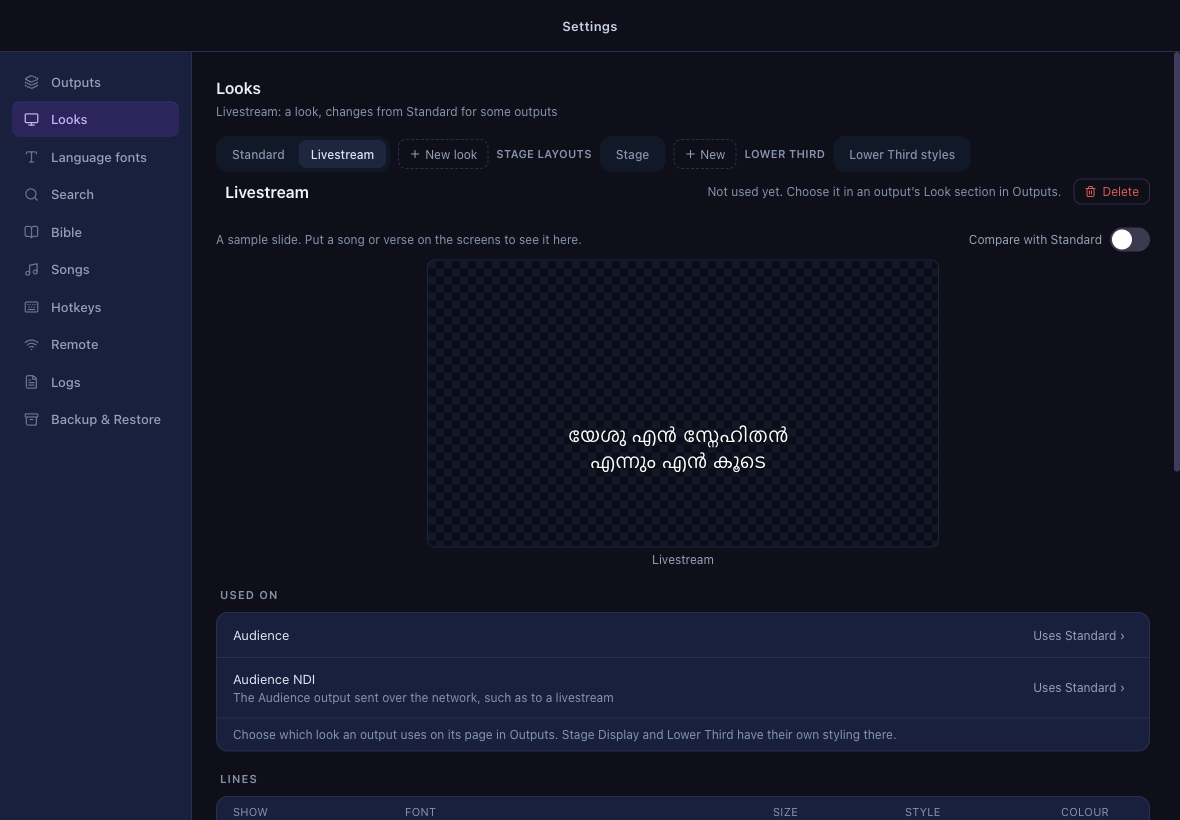
Change it as you like
The new look opens. Every setting reads Same as Standard until you change it, such as a bigger size or a different font.
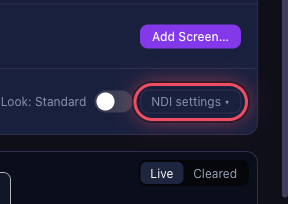
Open the Audience output's NDI settings
In Settings → Outputs, click Audience, then NDI settings in the NDI Output row.
Choose Livestream under Look on NDI
The NDI stream now uses the Livestream look while the hall keeps Standard. Turn on NDI Output to start streaming.
 To use a look on a screen instead, choose it in the output's Look section.