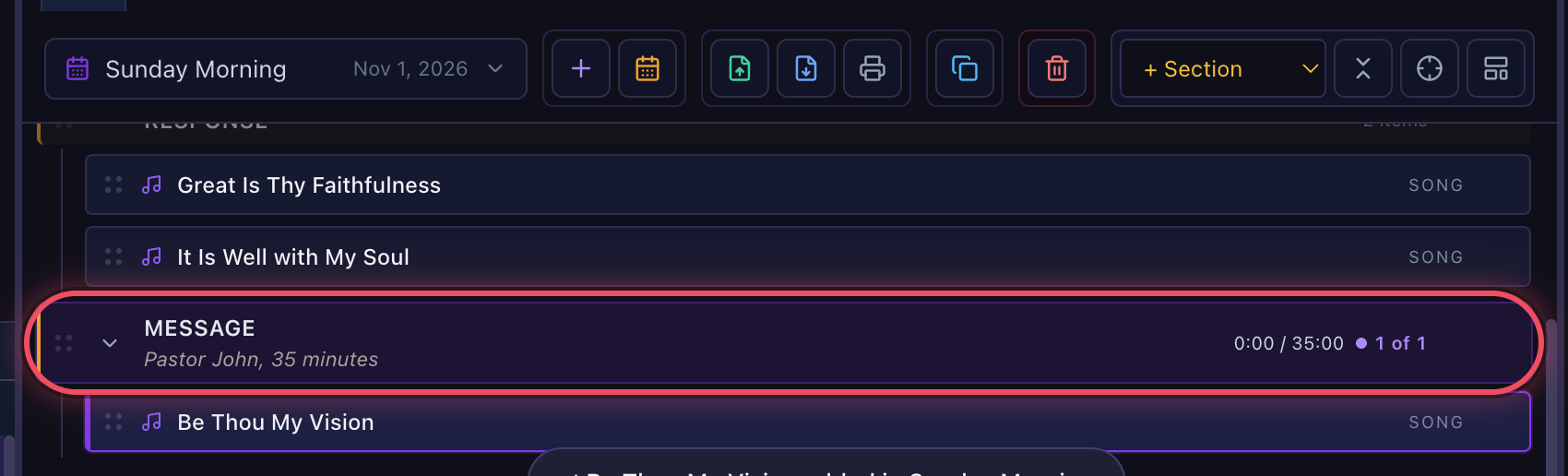
Organise a plan into sections
Sections turn a plan into the order of service. Each one can have a planned time, a colour and a note for the team, and every screen shows which section the service is in.
Add a section
Open the + Section list in the plan toolbar and pick a name, such as Message, or Other name… for your own.

Right-click it for its settings
Right-click the section for a colour, Rename…, Duplicate, Add note…, Count down the planned time and Planned time….
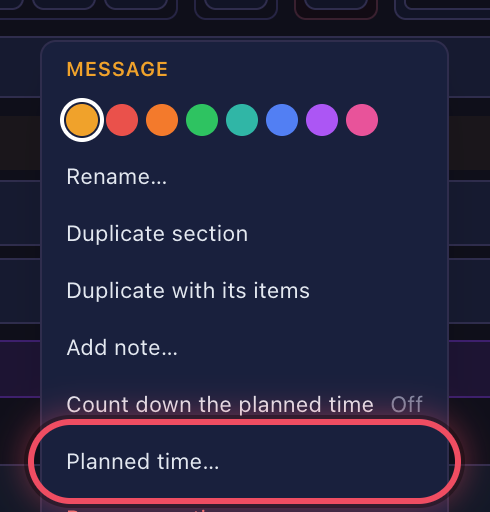
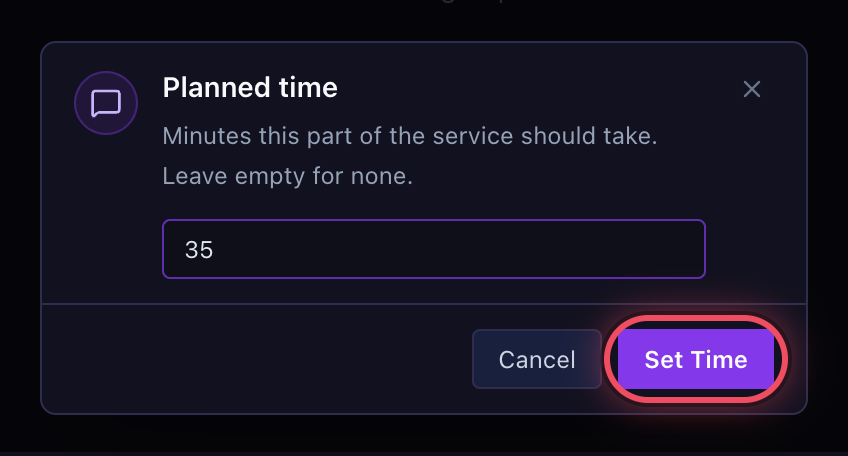
Give it a planned time
Type the minutes, such as 35, and click Set Time. While the service is in it, its clock shows on the stage screen, the stage link and the phone remote.
 Use Add note… for a line the team sees under the section's name, such as Pastor John, 35 minutes.
Click the section, then Add to Plan
With the section selected, open a song, verse or slide and click Add to Plan: it goes at the end of that section. You can also drag it from the library onto the section.
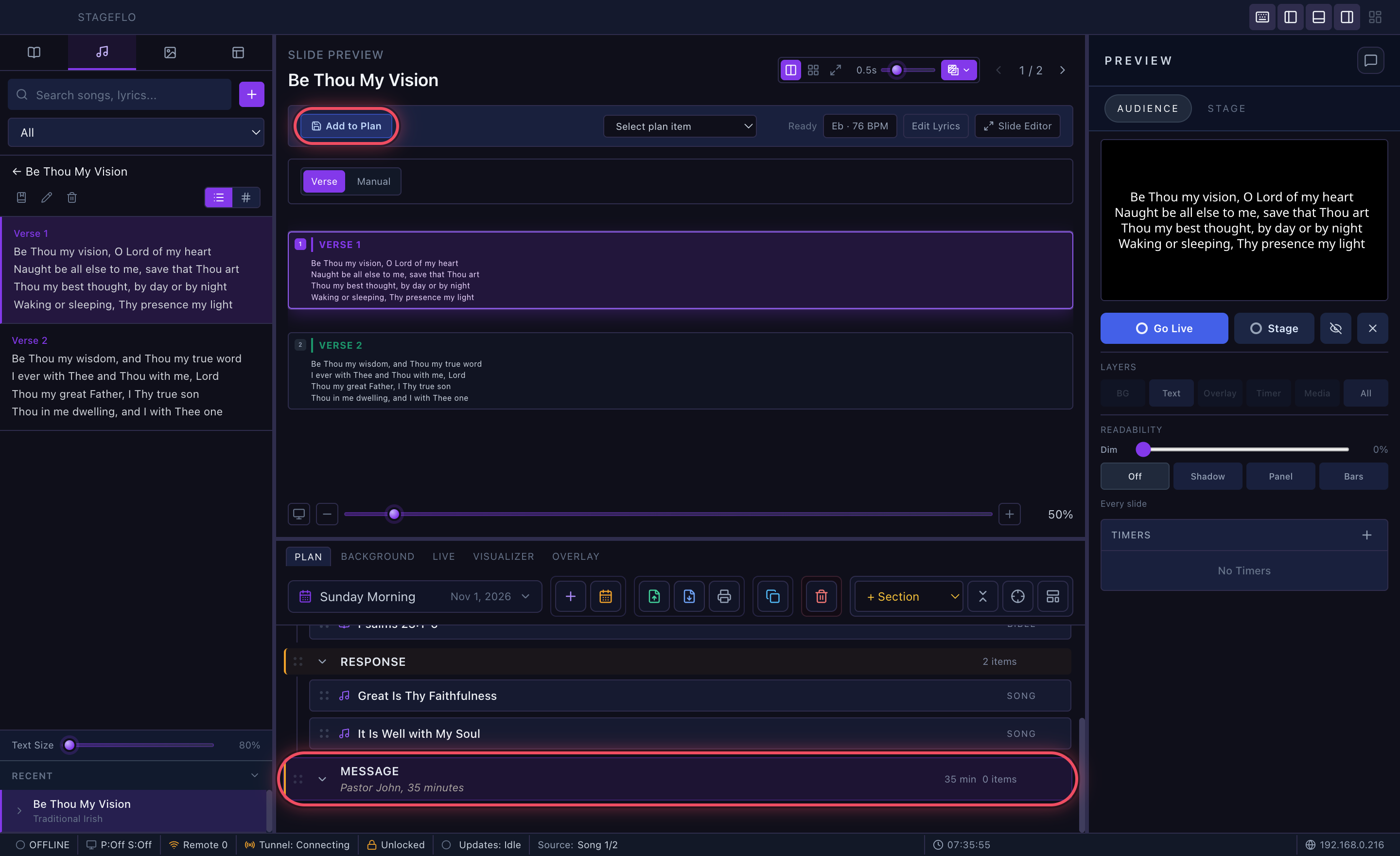
It lands in the section
The song sits under Message. Drag items to move them; Cmd-click (Ctrl-click on Windows) or Shift-click to move several at once.